Setting custom baud rate on serial port
custom baud rate

Serial ports are really important in Industry Automation, in fact they are widely used to communicate between computers and their peripherals (or between computers too). Usually these serial peripherals use standard baud rates but sometimes they not! So how we can force our serial controller to use these non standard speeds?

Looking around into the driver

The Linux kernel is an open-source project so to better answering to the above question we can start by directly looking into the source, in fact if we take a look into file linux/drivers/tty/tty_ioctl.c  we can see the following code for the set_termios()  function:

/* If old style Bfoo values are used then load c_ispeed/c_ospeed
 * with the real speed so its unconditionally usable */
tmp_termios.c_ispeed = tty_termios_input_baud_rate(&tmp_termios);
tmp_termios.c_ospeed = tty_termios_baud_rate(&tmp_termios);

Here we can see that input and output speed is read from the termios  variables by using specific functions. Then if we take a look at one of these functions, for example tty_termios_input_baud_rate() , we see the following code:

speed_t tty_termios_input_baud_rate(struct ktermios *termios)
{
#ifdef IBSHIFT
        unsigned int cbaud = (termios->c_cflag >> IBSHIFT) & CBAUD;
        if (cbaud == B0)
                return tty_termios_baud_rate(termios);
        /* Magic token for arbitrary speed via c_ispeed*/
        if (cbaud == BOTHER)
                return termios->c_ispeed;

Here we notice that the BOTHER  define can be used to specify a generic value for baud rate instead of the classic fixed speed defines like B115200  & friends. In this scenario we can go further searching where BOTHER  is defined and we can discover that everything is into file linux/include/uapi/asm-generic/termbits.h , below is what we can found:

struct termios2 {
        tcflag_t c_iflag;               /* input mode flags */
        tcflag_t c_oflag;               /* output mode flags */
        tcflag_t c_cflag;               /* control mode flags */
        tcflag_t c_lflag;               /* local mode flags */
        cc_t c_line;                    /* line discipline */
        cc_t c_cc[NCCS];                /* control characters */
        speed_t c_ispeed;               /* input speed */
        speed_t c_ospeed;               /* output speed */
};
...
#define    BOTHER 0010000

So we discovered that struct termios2  can be used to specify serial communication parameters from the userland with non standard speeds. Let’s see how.

A practical example

Below is a simple code in C that we can use to set custom baud rate. It’s quite obvious that this code can work if and only if the underlying driver is supporting these advanced settings.

        struct termios2 term2;
        ioctl(fd, TCGETS2, &term2);
        term2.c_cflag &= ~CBAUD;  /* Remove current BAUD rate */
        term2.c_cflag |= BOTHER;  /* Allow custom BAUD rate using int input */
        term2.c_ispeed = speed;   /* Set the input BAUD rate */
        term2.c_ospeed = speed;   /* Set the output BAUD rate */
        ioctl(fd, TCSETS2, &term2);

By using the ioctl()  command TCGETS2  we retrieve from the kernel the current serial port configuration where we remove the (old and) current baud rate and then we enable custom baud rate with BOTHER .

As final note, don’t forget that the above code is just an example so we should add return values checks especially for systems calls!


Generare file binari al volo

firmware emebedded

Vi è mai capitato di dover creare un file binario contente dei valori esadecimali? Ad esempio se dovreste creare un file binario contenente i valori esadecimali della stringa BEBABEBAEFBEADDEBEBABEBAEFBEADDE, come fareste?

Lo so, e un’operazione poco frequente perché, di solito, serve il contrario e cioè poter leggere il contenuto di un file binario; cosa che si può fare ad esempio con il comando od.

Ad esempio per leggere 16 byte casuali si fa:

$ od -tx1 -N 16 < /dev/urandom
0000000 5b 84 9c 38 3b ac e0 95 f3 e4 3f c5 f5 96 f9 35
0000020

Ma per fare l’operazione inversa, cioè creare un file binario contenente dei valori ben definiti, come si fa?

Semplice, si usa il comando xxd come segue:

$ echo "0: BEBABEBAEFBEADDEBEBABEBAEFBEADDE" | xxd -r > /tmp/file.bin
$ od -tx1 < /tmp/file.bin
0000000 be ba be ba ef be ad de be ba be ba ef be ad de
0000020

In pratica questo comando, attraverso una speciale sintassi, permette di fare l’operazione inversa di od.

Installing OpenOCD from sources

linux embedded

Most GNU/Linux distributions offer the possibility to install OpenOCD directly using their packages management system, however these package may refer to not so updated releases of the software and this means that some CPUs may not be supported at all! That’s way could be very useful to know how to install OpenOCD from sources in order to get its latest release!

Downloading the code

First of all we need to download the official GIT source or a related mirror (I’m going to use the Spen’s Official OpenOCD Mirror):

git clone https://github.com/ntfreak/openocd.git

The needed extra packages

Once the sources have been downloaded we need some extra packages in order to get them compiled. On my Ubuntu Xenial I used the following command to install such software:

$ sudo apt-get install libtool automake libhidapi-dev

Compiling OpenOCD

Now we are ready! Just enter into the openocd directory and executing the bootstrap script as follow:

$ cd openocd
$ ./bootstrap

After that we can start configuring the sources by using the usual configure script which is able to auto detect our hardware. However we can force any special feature we want by simply adding one or more option arguments as shown below:

$ ./configure --enable-cmsis-dap

In the command above I force the  CMSIS-DAP compliant debugger support which I need to program my SAME70 based board.

When configure script has finished its job we can start the OpenOCD compilation and installation with the usual UNIX commands:

$ make -j8
$ sudo make install

Please, note that I used the -j8 option argument in order to have 8 compilation threads and the sudo command to be able to install the software into the system without permissions erros.

Testing the code

Once the compilation is finished we can test our new OpenOCD as follow (remeber that for this test I used my SAME70 based board). On a terminal we have to execute OpenOCD specifying the board’s script we wish to manage:

$ sudo openocd -f /usr/local/share/openocd/scripts/board/atmel_same70_xplained.cfg

Note that the sudo command may be mandatory in case you need to use an USB connection!

Note also that the path /usr/local/share/openocd/scripts/board/atmel_same70_xplained.cfg may vary in case you decide to install OpenOCD into a custom directory.

If everything works well you should see something like the following:

$ sudo openocd -f /usr/local/share/openocd/scripts/board/atmel_same70_xplained.cfg
Open On-Chip Debugger 0.10.0+dev-00512-gfd04460 (2018-08-09-18:25)
Licensed under GNU GPL v2
For bug reports, read
	http://openocd.org/doc/doxygen/bugs.html
Info : auto-selecting first available session transport "swd". To override use 'transport select <transport>'.
adapter speed: 1800 kHz
cortex_m reset_config sysresetreq
Info : flash bank command
srst_only separate srst_gates_jtag srst_open_drain connect_deassert_srst
Info : Listening on port 6666 for tcl connections
Info : Listening on port 4444 for telnet connections
Info : CMSIS-DAP: SWD  Supported
Info : CMSIS-DAP: FW Version = 02.09.0169
Info : CMSIS-DAP: Serial# = ATML2637010000000000
Info : CMSIS-DAP: Interface Initialised (SWD)
Info : SWCLK/TCK = 1 SWDIO/TMS = 1 TDI = 1 TDO = 1 nTRST = 0 nRESET = 1
Info : CMSIS-DAP: Interface ready
Info : clock speed 1800 kHz
Info : SWD DPIDR 0x0bd11477
Warn : Silicon bug: single stepping will enter pending exception handler!
Info : atsame70q21.cpu: hardware has 8 breakpoints, 4 watchpoints
Info : Listening on port 3333 for gdb connections

Now we can use different connections types to control OpenOCD. I use the telnet connection as below:

$ telnet localhost 4444
Trying 127.0.0.1...
Connected to localhost.
Escape character is '^]'.
Open On-Chip Debugger
>

Then I can easily reprogram the CPU’s internal flash with the following commands:

> halt
> flash write_image erase unlock /tmp/nuttx.hex 0 ihex
auto erase enabled
auto unlock enabled
device id = 0xa1020e00
erasing lock regions 0-8...
erasing lock region 0
erasing lock region 1
erasing lock region 2
erasing lock region 3
erasing lock region 4
erasing lock region 5
erasing lock region 6
erasing lock region 7
erasing lock region 8
wrote 147456 bytes from file /tmp/nuttx.hex in 3.278660s (43.920 KiB/s)
> reset
> 

Note that file /tmp/nuttx.hex is the new image I wish to program into my CPU.

IA40: Status macchina immediato via SMS!

Come amministratore di impianti, officine o laboratori è fondamentale sapere, ad ogni istante, lo stato di funzionamento di ogni macchina ed attrezzatura presente nella propria azienda; è importante quindi prevedere dei sistemi di allarme che ci avvisino con un SMS (o altro tipo di allarme) quando qualcosa non va o semplicemente quando un ciclo produttivo è terminato e necessita dell’intervento di un operatore o di un tecnico.

Quando questi sistemi addirittura ci raggiungono direttamente sul nostro smartphone e su quello dei nostri collaboratori allora la cosa diventa davvero interessante e merita una qualche considerazione se adottarli o meno.

Il sistema IA40 di HCE Engineering fa proprio questo: vi avvisa con un SMS ogni qual volta un vostro macchinario necessita un qualche tipo di attenzione, in modo che tutto sia sempre sotto controllo e la produzione non si fermi!

La struttura di base

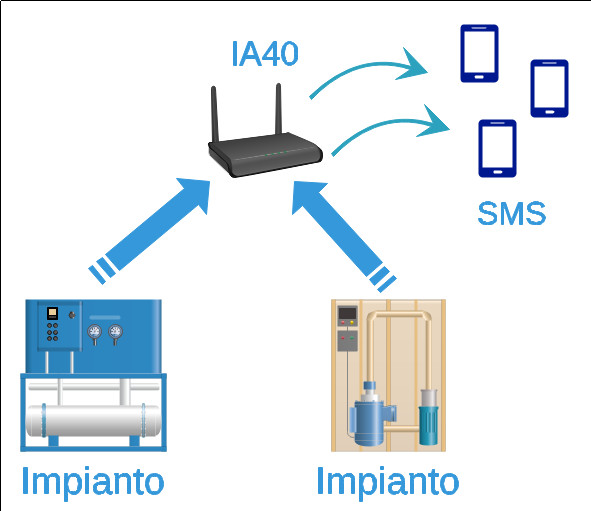
Una installazione tipica è composta da una interfaccia di campo (detta satellite), la quale legge fisicamente gli eventi di impianto attraverso segnali elettrici (ad esempio ingressi free-contact o 4..20mA), e da un accentratore di eventi (IA40 nella figura sotto), il quale ha il compito di ricevere gli eventi generati dai vari impianti e di smistarli, via SMS, verso gli smartphone dei vari addetti alla produzione.

IA40 struttura

Tramite una interfaccia grafica web è possibile poi configurare il concentratore degli eventi in modo che questo li invii ad uno o più numeri di cellulare.

Ogni satellite è collegato via Ethernet all’accentratore il che permette di semplificare notevolmente le connessioni all’interno della rete aziendale.

I Satelliti

Come sistema satellite, cioè il sistema che ha il compito di rilevare fisicamente gli eventi di impianto, è possibile al momento utilizzare un qualsiasi sistema in grado di generare messaggi TCP del tipo:

nome_macchina;parametro;valore

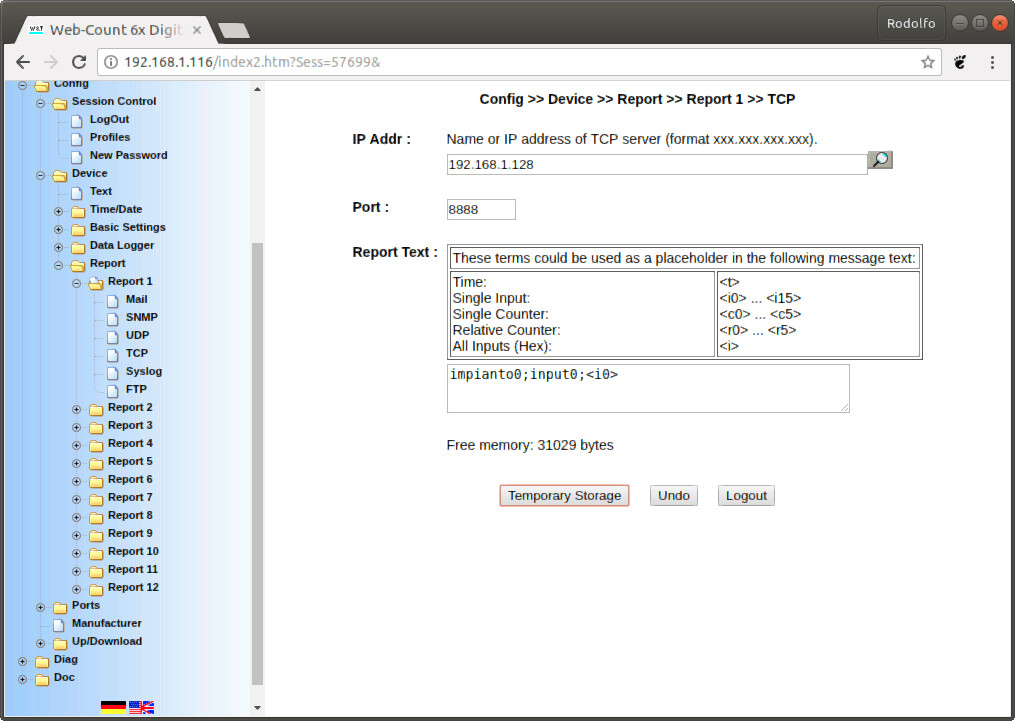
Come sistemi in grado di fare ciò la HCE Engineering, quale partner W&T, utilizza diversi apparati come ad esempio il Digital WEB-IO che può essere facilmente configurato per questa operazione semplicemente dal pannello di controllo come riportato sotto.

w&t configurazione

Quindi ogni volta che l’ingresso digitale 0 cambia stato il satellite invia un messaggio TCP tipo “impianto0;input0;ON“alla porta 8888 dell’accentratore che ha indirizzo IP 192.168.1.128.

A questo punto possiamo usare il comando nc per verificare che effettivamente le cose vanno proprio così.

root@debian:~# while nc -l -p 8888 ; do echo "" ; done
impianto0;input0;ON
impianto0;input0;OFF

L’accentratore (SMS gateway)

Come sistema accentratore si può utilizzare un qualsiasi sistema Debian/Linux che abbia almeno una porta Ethernet e un modem GSM. La HCE Engineering utilizza il suo sistema Enigma Industrial con a bordo un modulo GSM di propria produzione.

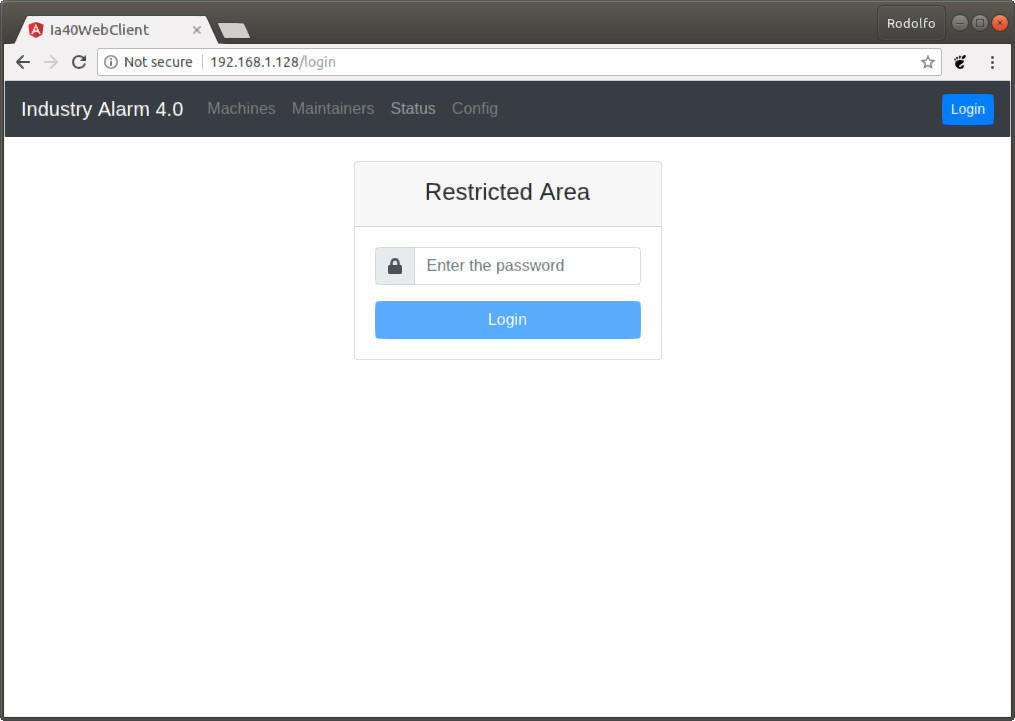
Una volta configurato il sistema si presenta all’utente tramite la propria pagina WEB riportata sotto.

ia40 web login

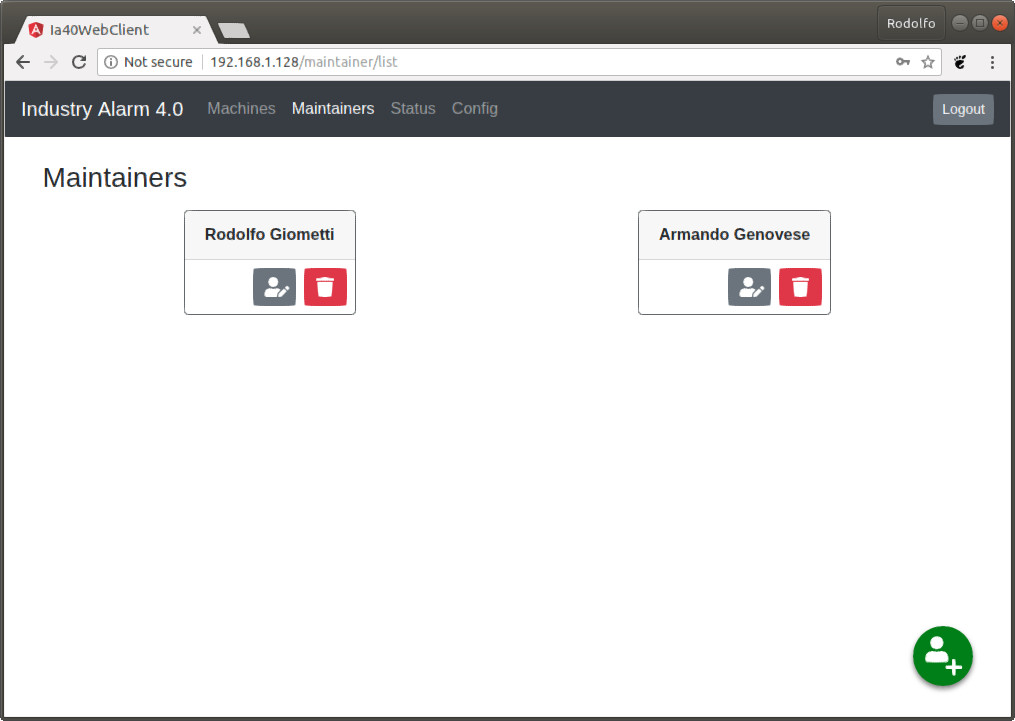
Una volta effettuato il login abbiamo la possibilità di aggiungere nuove macchine (Machines) al sistema e nuovi manutentori (Maintainers) ai quali associare le macchine. Nello screenshot sotto vediamo la lista di due manutentori preinseriti.

ia40 web manutentori

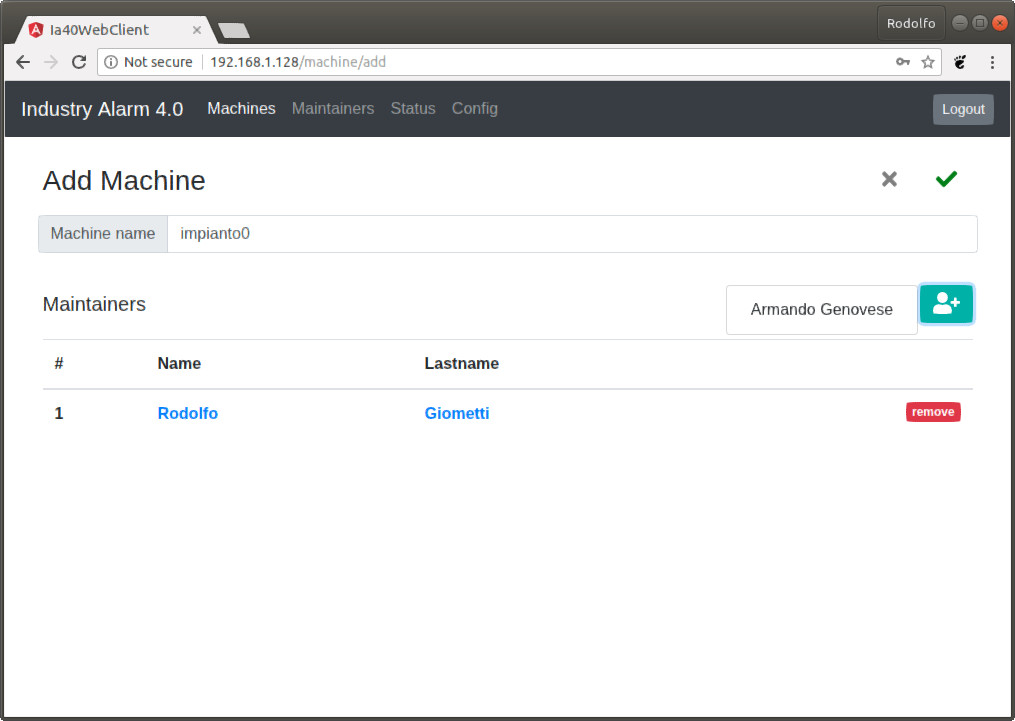
A questo punto se andiamo nel menu Machines ed aggiungiamo una nuova macchina avremo la seguente schermata:

ia40 web macchine

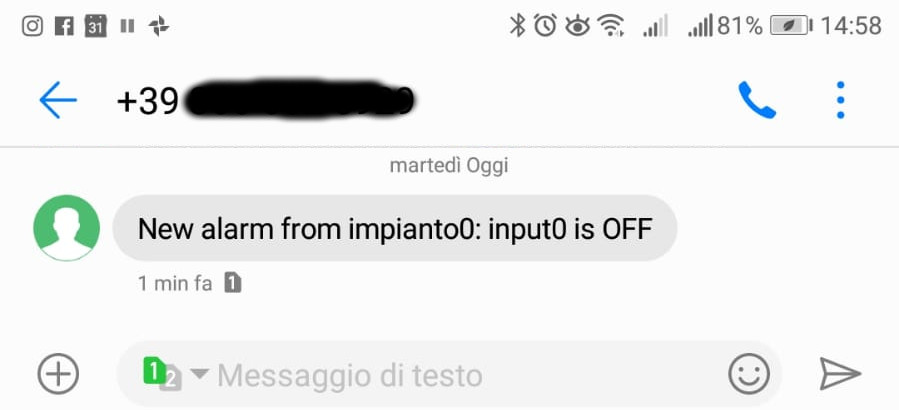
In Machine name dobbiamo mettere impianto0 mentre nella sezione Maintainers possiamo aggiungere uno o più manutentori. A questo punto il gioco è fatto, basta aspettare un evento e ogni manutentore riceverà un SMS come nello screenshot sotto.

ia40 SMS

Conclusioni

Il sistema IA40 di HCE Engineering è un sistema che permette ad ogni Plant  Manager (ed ai suoi collaboratori) di avere sotto controllo, istante per istante, i propri apparati produttivi anche se dislocati su vaste aree.

Al momento il sistema supporta solo l’invio delle notifiche via SMS e la ricezione degli eventi via TCP, ma i tecnici HCE Engineering stanno già prevedendo di aggiungere nuove notifiche via e-mail o telegram/whatsapp e di supportare la ricezione di eventi attraverso altri sistema di comunicazione Ethernet, Bluetooth, Zigbee, Z-Wave, ecc.

Case History: Single Board Computer automotive

Completo sistema embedded automotive.

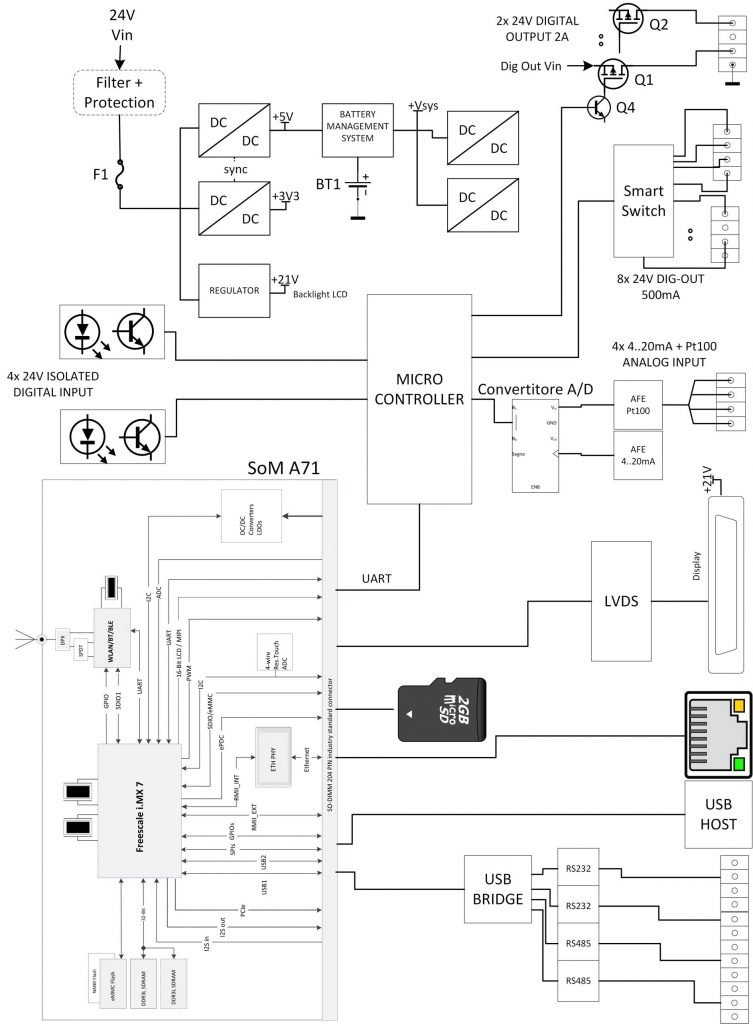
Il sistema custom rappresentato nello schema a blocchi è stato sviluppato ed ottimizzato per il mercato automotive. Il sistema è composto dal modulo cpu A71 che fornisce il motore logico e la connettività e dalla scheda madre (carrier board). Il sistema SbC così composto comprende tutte le periferiche di acquisizione ed interfacciamento nonché la gestione della batteria di backup e di diverse alimentazioni. Inglobando tutta l’elettronica su di un unica scheda si realizza un sistema completo, compatto e di minor costo di acquisto ed installazione.


Hardware

  • Compatibile con Modulo CPU A71 ( Dual Core Cortex-A7 NXP i.MX7D 800MHz, 1GB SDRAM DDR3, 4GB eMMC)
  • 1x RJ45 Ethernet (10/100Mbit)
  • 1x Wi-Fi IEEE 802.11 b/g/n (opzione modulo cpu)
  • 1x USB 2.0 host port
  • 1x Connettore per micro SD
  • 2x interfaccia RS232
  • 2x interfaccia RS485
  • 1x interfaccia CAN 2.0B (fino a 1Mbit/s)
  • 1x Real-time clock con batteria di backup
  • 1x TFT Panel interfaccia LVDS (fino a colori 24bit)
  • 1x Touchscreen (resistivo 4 fili)
  • 4x Ingressi Digitali 24V con isolamento
  • 8x Uscite Digitali 24V tipo PNP
  • 1x Ingresso Analogico Pt100 16bit
  • 1x Ingresso Encoder
  • Alimentazione a 24V a range automotive

Software

  • Linux Kernel 5.0
  • Debian
  • QT5.x su frambuffer
  • Applicazione proprietaria di monitoraggio, controllo, salvataggio e comunicazione dei dati, sia in locale che in remoto.
Single Board Computer automotive

Case Study: Scheda madre industriale

Completo sistema embedded per sistema di misura distribuito.

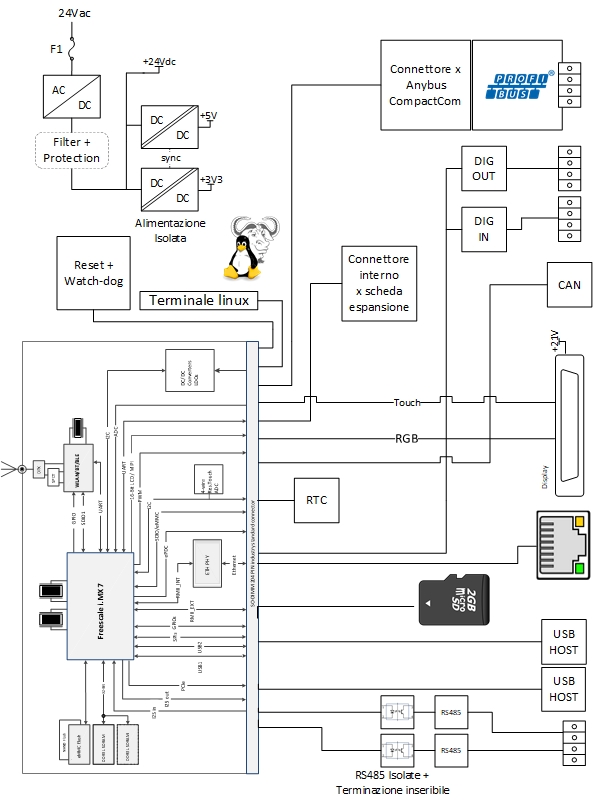
Il sistema rappresentato nello schema a blocchi è stato sviluppato per un sistema di misura utilizzato nel controllo di processo e nelle verifiche di prodotto per il settore alimentare. Il cuore logico del sistema è il modulo cpu A71 che fornisce la connettività e la capacità di elaborazione dei dati raccolti. La scheda madre (carrier board) comprende tutte le periferiche di comunicazione ed interfacciamento nonché la gestione di diverse alimentazioni anche per le periferiche di acquisizione collegate via RS485 o bus di campo. L’elettronica realizzata costituisce un sistema completo, compatto e tale da poter essere utilizzato sulle line di produzione od in laboratori, in modalità fissa o mobile.

Hardware

  • Compatibile con Modulo CPU A71 ( Dual Core Cortex-A7 NXP i.MX7D 800MHz, 1GB SDRAM DDR3, 4GB eMMC)
  • 1x RJ45 Ethernet (10/100Mbit)
  • 1x Wi-Fi IEEE 802.11 b/g/n (opzione modulo cpu)
  • 1x USB 2.0 host port
  • 1x Connettore per micro SD
  • 2x interfaccia RS232
  • 2x interfaccia RS485
  • 1x interfaccia CAN 2.0B (fino a 1Mbit/s)
  • 1x Real-time clock con batteria di backup
  • 1x TFT Panel interfaccia LVDS (fino a colori 24bit)
  • 1x Touchscreen (resistivo 4 fili)
  • 4x Ingressi Digitali 24V con isolamento
  • 8x Uscite Digitali 24V tipo PNP
  • 1x Ingresso Analogico Pt100 16bit
  • 1x Ingresso Encoder
  • Alimentazione a 24V a range automotive

Software

  • Linux Kernel 5.0
  • Debian
  • QT5.x su frambuffer
  • Applicazione proprietaria di monitoraggio, controllo, salvataggio e comunicazione dei dati, sia in locale che in remoto.

Funzionamento Box-to-Box per Web-IO Analogici

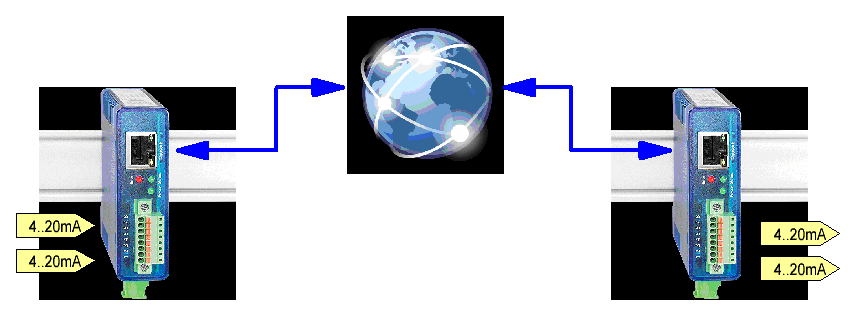
Replicare segnali analogici 4..20mA attraverso la rete

La stessa facilità di funzionamento della modalità Box-to-Box si può ottenere anche per i segnali analogici oltre che quelli digitali. Nelle figure seguenti si illustra come sia possibile replicare due segnali 4..20mA provenienti da due trasmettitori (pressione, temperatura, pH, etc etc) attraverso la rete e renderli disponibili in un punto di misura distante dal punto di prelievo.

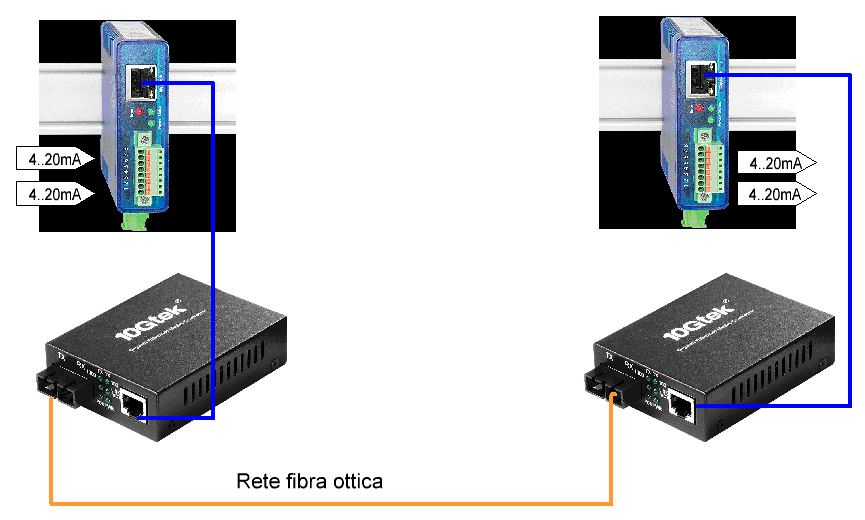
Replicare segnali analogici 4..20mA attraverso una barriera di isolamento in fibra ottica.

Con l’aiuto di un media converter è possibile anche trasferire i segnali analogici attraverso una barriera di isolamento in fibra ottica.

Per il trasporto e la replica dei segnali digitali su fibra ottica esistono delle soluzioni ad hoc ancora più semplici.